Process Efficiency
Support Ops & Teams
Published on
17.10.2026
Last updated on
17.10.2026
Zendesk Salesforce integration: Setup guide, key challenges & solutions


.png)
Support stacks are rarely as connected as people assume. In MuleSoft's 2025 Connectivity Benchmark, conducted with Vanson Bourne and Deloitte Digital across more than 1,050 IT leaders, the average organization ran 897 applications. It integrated only 29% of them, while 90% said data silos were creating business problems.
A support-to-CRM connection is one of the first silos worth closing, but only if you know what it impacts. This guide covers what the Zendesk Salesforce integration syncs, how to set it up, and when the native app stops being enough.
Since we run these integrations for clients as part of our human + AI support model, we will also talk about common pitfalls in production.
Most teams describe the Zendesk Salesforce integration as one two-way sync between support and CRM. That assumption causes a good share of the setup problems we run into.
In reality, the native integration, built and maintained by Zendesk, bundles 4 capabilities that people tend to group as "sync." Three of them are genuine data syncs with a fixed direction. The fourth pair are live views into the other system. See the picture below for a breakdown.
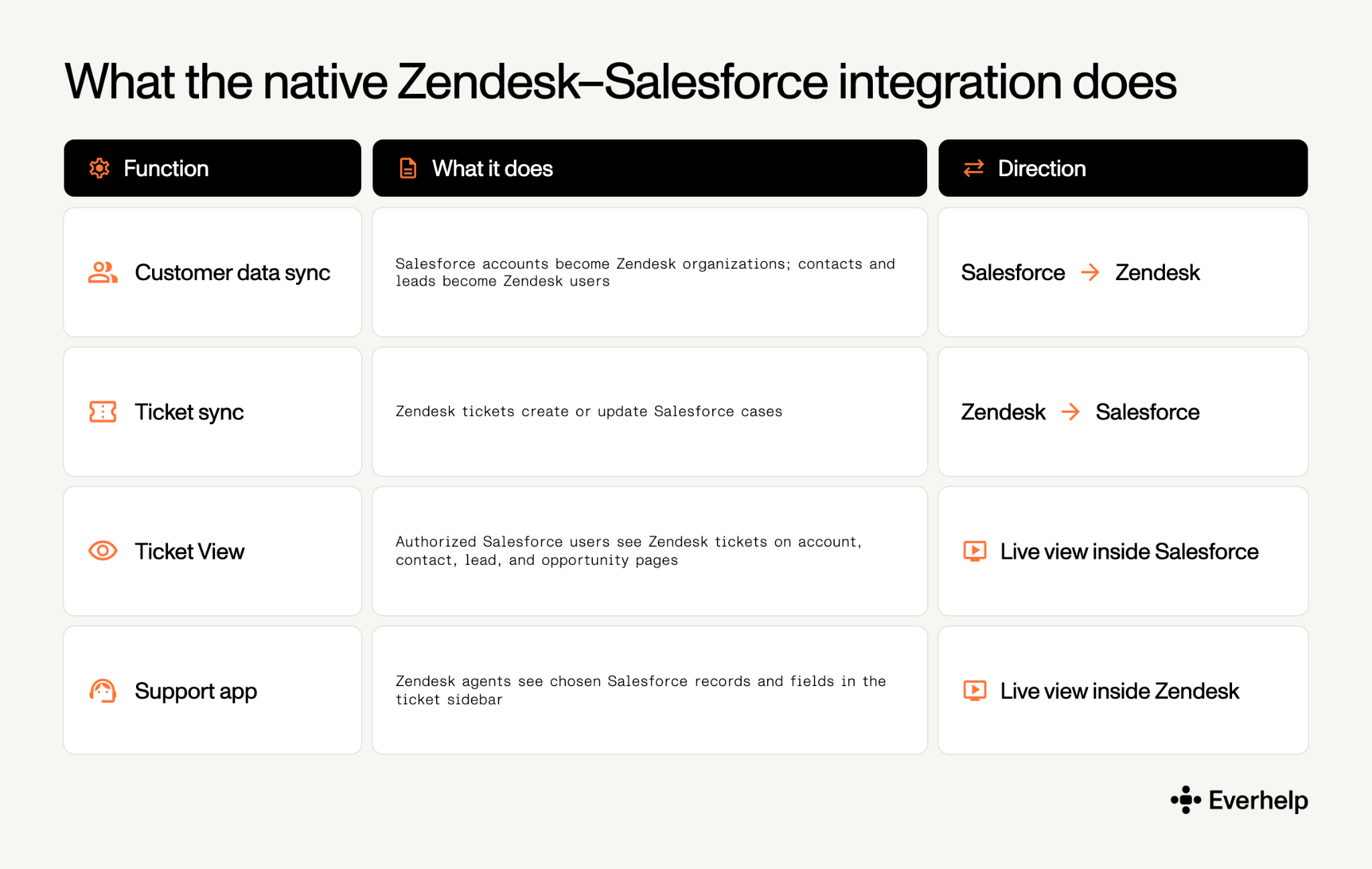
What really separates the 4 functions is the direction data travels. Here’s how each of the flows works once it’s live:
We encourage you to check out Zendesk's own documentation for a better understanding of the integration process. Remember that the data sync is, by design, one-directional. So, when your agent edits a Zendesk ticket from inside Salesforce, no data crosses between systems. They're basically changing the one record that already exists, through a different screen.
Since most of the setup friction is permission-related, it makes sense to sort out all the major questions from the get-go.
You’ll need:
Note: As of 2026, Zendesk supports connecting multiple Salesforce organizations and Zendesk accounts, replacing the old one-to-one restriction. If you tried this a couple of years ago and gave up, the constraint you hit may be gone.
{{cta}}
The first thing to know is that the Zendesk Salesforce integration setup runs from the Zendesk Admin Center. Second, Zendesk recommends completing the process in sandboxes first to ensure production permissions and record IDs match the desired organization.
Third, here is the setup process, with a step-by-step breakdown below.
In Salesforce:
What can go wrong: A locked session lets the first OAuth connection succeed, then drops it when the session expires, which reads like an intermittent sync bug instead of a wrong policy setting.
If a working connection starts dropping, check the setting.
In Admin Center:
What can go wrong: Authentication fails when the connecting user is API-only instead of a full user who can sign in interactively. And selecting the wrong instance misroutes the whole setup.
Label each connection clearly before you switch anything on, so you don’t guess what’s what.
Select the connection, open the Support app, and turn it on. From there:
What can go wrong: Even after the app installs cleanly, agents can see an empty sidebar when the integration user lacks object-/field-level access to the Salesforce objects you mapped.
Give the integration user read access to every object and field you mapped, then reload the ticket.
In the connection's Ticket View tab:
Then enable PKCE in the connected-app settings and pre-authorize your admin-approved users.
What can go wrong: Users without the managed package or profile access see no tickets at all. Matching, non-unique criteria are the bigger risk because they can display one customer's tickets on another customer's record.
Grant the package and the right profiles to the users who need them, and match on a unique field such as an external ID rather than name or email.
Note: Some older guides may tell you to disable PKCE. Zendesk's current documentation, however, says to enable it in the Salesforce connected-app settings so that assigned, non-admin users can see Ticket View.
Having taken the 4 steps above, you will have visibility and ticket-to-case synchronization. However, at this stage they won’t copy records between Zendesk and Salesforce.
If you need that, set up the 2 syncs on top, configuring each one on its own:
Keep that case record type separate from your existing case processes, so support tickets don't get mixed into sales workflows. If the mapping and triggers start to look like a whole project, look into Zendesk integration services to set it up for you and test it inside your existing org.
As you may have grasped, most Zendesk Salesforce integration problems aren't outages. More often than not, they are configuration issues that linger after integration.
In the table below, we’ve collected the major issues we’ve highlighted along with their usual cause and fix.
CRM data is messy to start with. Validity's 2025 State of CRM Data Management report found 76% of users say less than half their CRM data is accurate, even though 90% call it the cornerstone of their operations.
And most of these problems come back to the match key. Email and account name are easy to match on, but they change often, which makes them a weak key. Where the app supports it, match on a stable external ID instead.
Where Salesforce connects through a single native app, HubSpot splits the Zendesk connection across 2 of them. One is built by Zendesk, the other by HubSpot, and they do different jobs. That's what makes the HubSpot Zendesk integration trickier than the Salesforce one looks.
{{cta}}
Install the app built by Zendesk from the HubSpot App Marketplace using a Super Admin or a user with App Marketplace permissions. Authorize both sides.
The setup creates 3 Zendesk triggers and 1 webhook for ticket created, ticket solved, and CSAT submitted events. Test it by opening a HubSpot contact, filtering the activity feed to Integrations → Zendesk, and running a new ticket through. Confirm the activity lands on the contact timeline.
After installing HubSpot-built Data Sync, go to:
Review the default mappings; custom field mappings require Data Hub Starter or higher. Run a limited pilot before the first historical sync, which HubSpot says normally completes within 10 minutes after initial indexing.
The HubSpot Zendesk integration limitations mostly regard direction and customization:
Neither HubSpot app gives you field-by-field, two-way ticket sync. If a ticket's status has to look identical in both systems at all times, you're past what these apps do, and into middleware or a custom build.
If you haven't settled on a help desk yet, our Freshdesk vs Zendesk comparison is a better place to start than any of these integrations. But if you are sure you will be integrating Freshdesk as your CRM of choice, then you should know the following.
Freshworks' current Salesforce Connector App has 2 parts:
For contacts and accounts, you can sync in either direction or both ways, once you've mapped the fields and set a primary key. The add-on is documented at $80 per 5,000 tasks and needs an active Freshworks subscription.
An older "Freshdesk for Salesforce" package was deprecated, so start from the current Connector App rather than following a guide that names the retired one.
This can mean 3 of the key applications:
So before you commit, check which company built the app and confirm in your Freshdesk admin console that it supports your plan. Two-way sync isn't available in all of them.
Those are the 3 CRM integration methods for any help desk, whether you're on Zendesk, a HubSpot-based stack, or one of the newer AI help desk platforms that bundle customer service chatbots and CRM sync by default. The right method depends less on company size than on who owns the data and how you handle exceptions. Here's how the trade-offs fall for a typical helpdesk CRM integration.
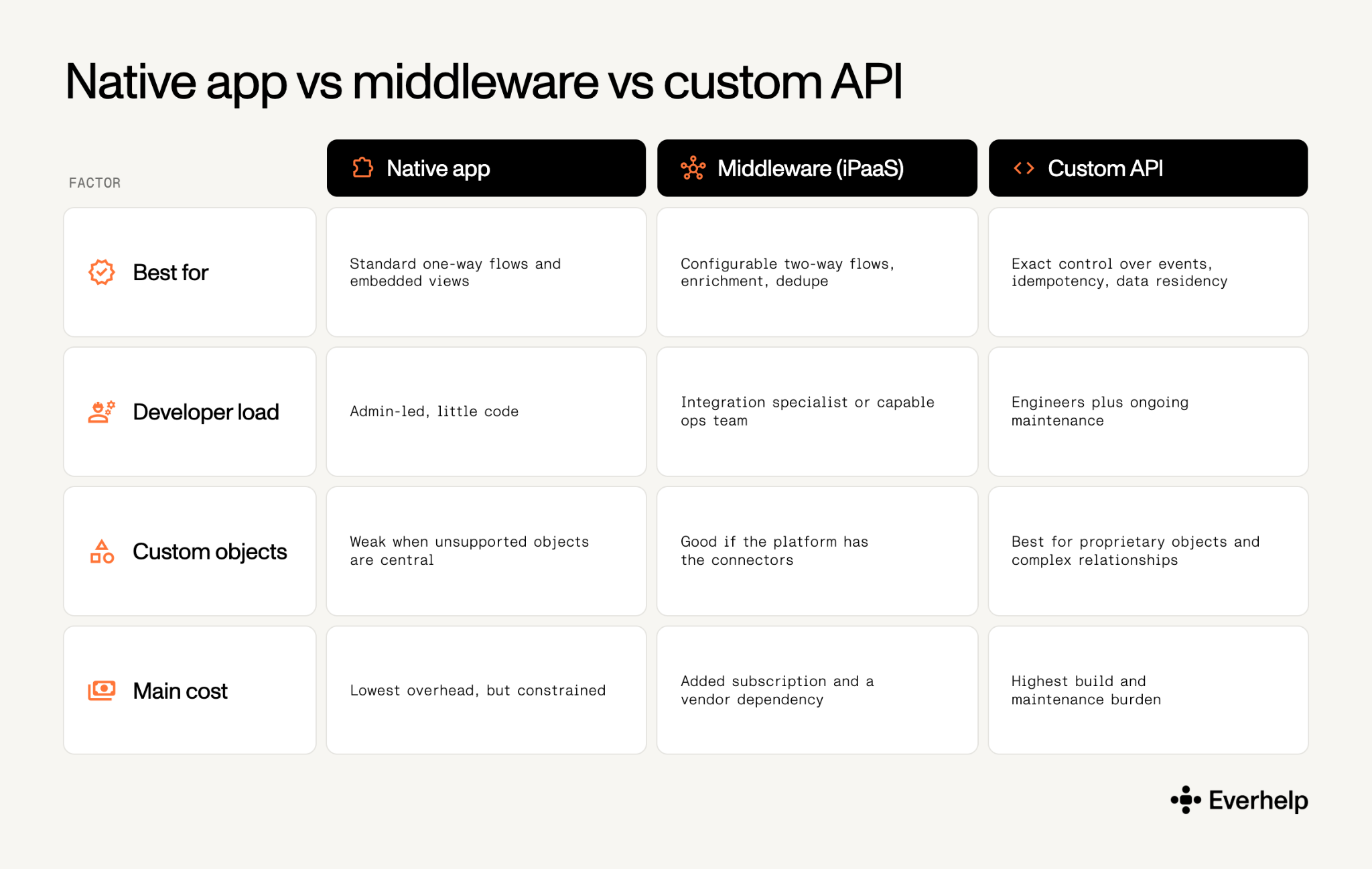
Take the first of these that matches your situation:
Even "low-code" routes carry dependencies. Salesforce's own 2026 Zendesk connector for Flow, for instance, needs the MuleSoft for Flow add-on in some scenarios.
Read our rundown of Zendesk alternatives and the broader best help desk software comparison for a faster breakdown of all major software options.
Run this CRM integration checklist before you send anything to production:
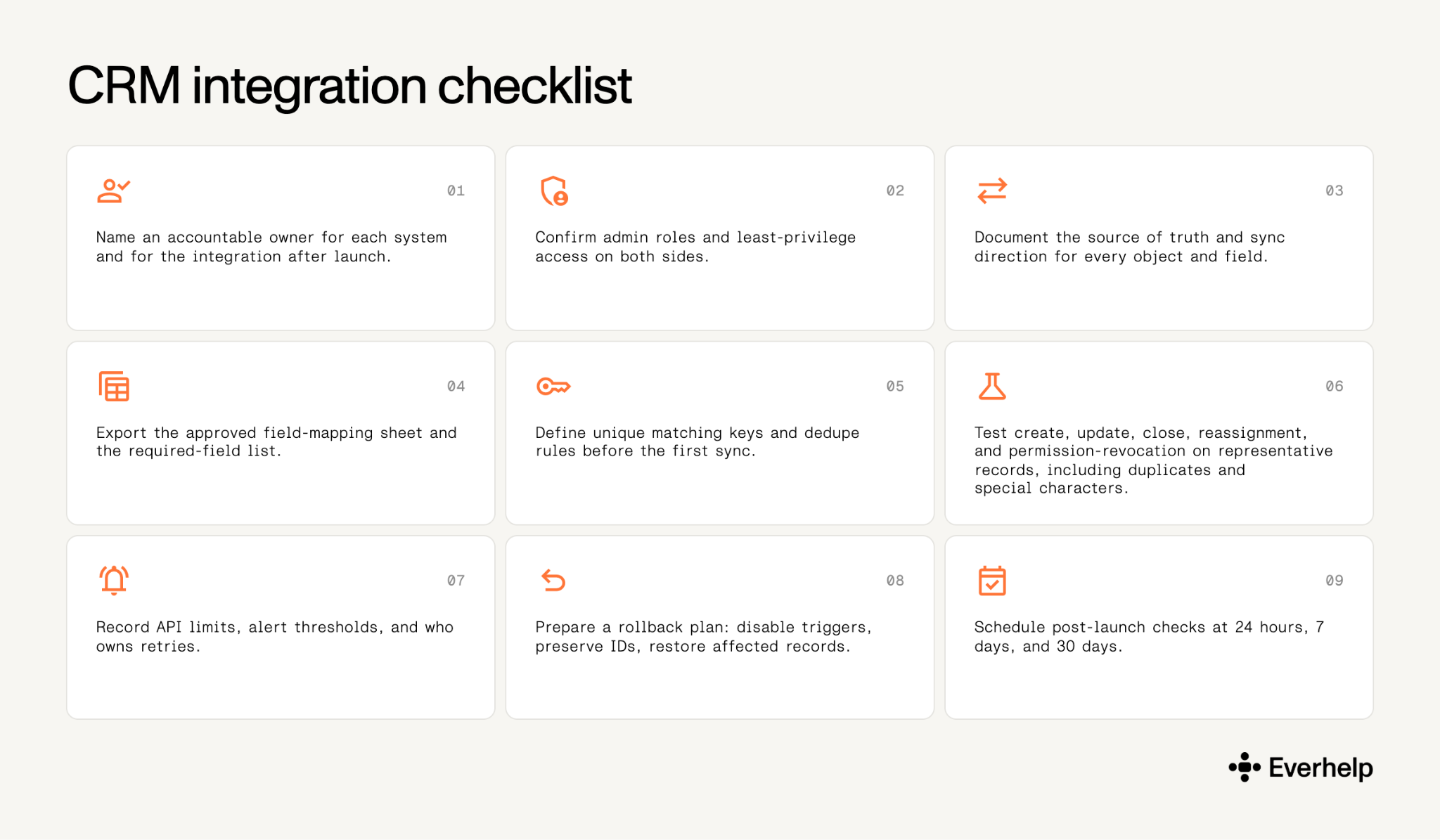
Note: Data ownership belongs in your launch criteria too. The matching keys and conflict rules you define here dictate whether the sync holds up once real volume hits it. Give agents a documented knowledge base for human support team alongside it, so the CRM context the integration surfaces turns into consistent answers.
A clean integration doesn't fix an unclear process, and no amount of customer service automation closes a gap that's really about ownership. We've connected stacks that worked perfectly and still watched service slow down, because the real constraint was elsewhere: undefined access roles, weak escalation rules, inconsistent data handling, or a queue with too few people in it.
This shows up most at the handoff. A ticket can sync into Salesforce as a case in under a minute and still sit untouched for a day because no one owns this specific escalation path.
So if you bring in an outsourced customer support CRM team to work inside your existing Zendesk and CRM, the operational layer deserves as much attention as the sync config. Everhelp's hybrid AI and human support model runs inside your current tools, with an AI chatbot resolving routine tickets and trained agents handling complex cases.
The payoff is measurable: one Everhelp client moved from a 200-hour wait to a 4-minute response once we rebuilt the operation around the handoffs rather than the tooling.
Read more on how to set up operations around AI integration in our AI in customer service handbook.
{{cta}}
Each native sync is one-way. Salesforce accounts, contacts, and leads flow into Zendesk organizations and users; Zendesk tickets flow into Salesforce as cases. Ticket View and the Support app add cross-system visibility, but they’re embedded interfaces.
No, for supported objects, embedded views, and one-way flows. You will need it (or a custom API) when you need true two-way same-object sync, unsupported custom objects, attachments, or cross-system conflict resolution. Start native and add middleware only when the gap is real.
Yes. The ecosystem supports separate Salesforce and HubSpot integrations, and Zendesk now allows multiple Salesforce connections. Treat it as an architecture decision: assign one owner for contact and company fields so two connectors don’t create the same record under different rules.
The native app has no separate connector fee in the current listing, but it requires paid Zendesk and eligible Salesforce subscriptions with API rights. Add-ons change the total: HubSpot custom mappings need Data Hub Starter or higher, and Freshworks Connector Apps are documented at $80 per 5,000 tasks.
Help someone else stay in the know. Hit that share button!



.webp)

.avif)
.avif)